
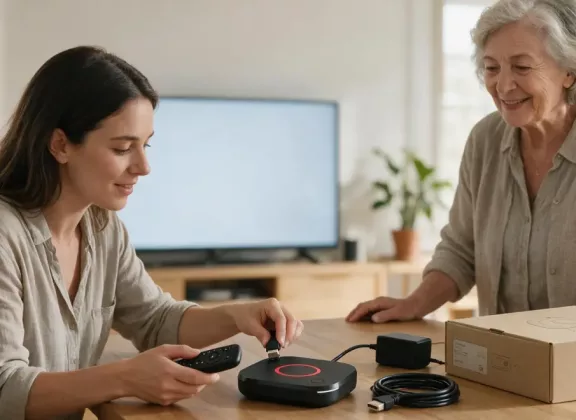
An IPTV set top box may contain far more personal information than you realize. Streaming service logins, viewing history, stored Wi-Fi passwords, IPTV provider credentials, installed applications, and custom settings can all remain on the device. For this reason, simply unplugging the box, packing it up, and giving it to someone else is not enough.
Before selling or handing over the device, you should erase personal information, disconnect your accounts, and return the box to a state where the next owner can set it up from scratch. Proper personal data removal is an important part of device privacy and helps you sell used IPTV box safely. The exact steps may vary depending on the model and operating system.
Check Whether the Set-Top Box Actually Belongs to You
Before deleting anything, confirm that you own the device. A set-top box supplied as part of an IPTV or internet plan may still belong to the provider, even if you have been using it for several years.
If that is the case, do not sell or give the box to another person until you have checked your contract. Ask the provider whether the equipment needs to be returned, whether ownership or service can be transferred, and whether the device is still linked to your subscriber account.
If you bought the box yourself, you can move on to preparing it for the new owner.
Sign Out of All Personal Accounts
Start by checking every app and service where you are signed in. Your box may still have active sessions for YouTube, Netflix, and other streaming platforms. Devices running Android TV or Google TV may also be connected to your Google account.
Whenever possible, sign out manually before resetting the device. A proper streaming account logout provides an extra layer of protection. If a service lets you view and manage authorized devices, open your account from a phone or computer afterward and confirm that the box you are selling no longer has access. This is a useful additional step when you need to remove account from IPTV box completely.
The IPTV application deserves separate attention. Remove any stored username and password, playlist URL, server address, portal information, or other service credentials. Check the IPTV account settings as well. If your subscription is tied to the device itself, its MAC address, or another identifier, contact your provider and ask how to unlink the old box correctly.
Back Up Anything You Will Need Later
Before performing a reset, think about the settings you may want to use on your next device.
These could include your IPTV provider details, playlist URL, EPG information, app list, or other configuration data. If your IPTV application offers a backup or export feature, save the necessary information somewhere secure.
Do not pass this backup to the buyer. It is intended for your own use and may contain private information or credentials that provide access to your subscription.
Restore the Device to Factory Settings
Once your accounts have been disconnected and important settings have been saved, return the box to its factory state. A factory reset is one of the key steps when you prepare set top box for resale.
The procedure removes installed applications, user accounts, and most personalized settings, returning the software to its original configuration. The location and name of the reset option vary by platform and software version, but it is normally found in system settings under device, system, storage, or reset options. Using the built-in reset function is generally how to factory reset IPTV box without unnecessary third-party tools.
For an Android TV box or Google TV device, the reset is normally performed from the system menu. If you need to factory reset Android TV box, use the operating system’s standard reset function. Linux-based devices may have a different procedure depending on their model and firmware.
The same rule applies when you need to reset MAG set top box. Follow the official procedure for the specific model and software version because menu options and recovery methods may differ. A MAG box reset should be performed according to the instructions intended for that particular device.
Never disconnect the power while the reset is in progress. Wait until the process finishes and the box restarts.
Make Sure the Reset Was Successful
Selecting Factory Reset is not the final step. Once the device restarts, check that it displays the initial setup screen, just as it would when being switched on for the first time.
Your accounts, IPTV playlists, viewing history, active app sessions, and saved profiles should no longer be available. This check is essential if your goal is to remove personal data from TV box rather than simply sign out of a few applications.
If the device returns to your previous interface or an application is still logged in, the reset may not have completed properly. Consult the manufacturer’s instructions and repeat the procedure correctly. When you clear data from streaming box, always verify the result afterward.
Do not configure the device again for the buyer using your own Google account, Wi-Fi credentials, or IPTV information. Leave the initial setup to the new owner.
Put Together Everything the New Owner Will Need
Software cleanup is only part of the preparation. Check the physical condition of the equipment as well. Wipe the box and remote with a dry, soft cloth, inspect the ports, and confirm that the device powers on and operates normally.
If possible, include the accessories supplied with the device: the original power adapter, remote control, required cables, manual, and packaging. Pay particular attention to the power supply. Do not replace the original adapter with an unrelated one that does not meet the required specifications.
Losing the original packaging or printed manual does not usually prevent you from selling a used TV box. If the box is missing, choose sturdy packaging of the appropriate size and protect the device against impact during transportation. If you no longer have the manual, give the buyer the exact model name so they can find the manufacturer’s official documentation online.
When Professional Help Is a Better Option
Most users can handle the basic preparation themselves. Signing out of apps, backing up necessary settings, performing the standard reset, testing the box, and collecting its accessories do not normally require specialist knowledge.
However, contacting the provider or a technician is advisable if the box is tied to an operator account and you cannot unlink it, the standard reset fails, the device asks for the previous owner’s credentials after being reset, the box no longer boots, it uses customized operator firmware, or you are unsure whether certain settings can safely be erased. In these situations, set top box security is more important than experimenting with unfamiliar procedures.
Avoid reflashing the firmware simply because you are selling the device. If something goes wrong during installation, a working box can become unusable. In most cases, the built-in account removal and factory reset options are all you need to reset streaming device before selling.
Checklist Before Selling or Giving Away an IPTV Set-Top Box
Before the device changes hands, check each of the following:
- Make sure you own the box and are allowed to transfer it to someone else
- Sign out of Google and any other personal accounts
- Log out of all streaming services
- Delete IPTV credentials, playlists, and other access details
- Unlink the device from your IPTV provider if required
- Save any settings you will need for your next box
- Reset IPTV box before selling using the standard factory reset option
- Restart the device and confirm that your personal information has been removed
- Test the box, remote control, and power adapter
- Gather the cables and other original accessories
- Include the original packaging and documentation if available
- If the original box is missing, package the device securely for transport or handover
- Give the new owner the exact model name so they can locate the official instructions
Getting an IPTV set-top box ready for a new owner is usually straightforward: disconnect your accounts, save anything you still need, perform a factory reset, and verify that the device has been cleared. If the box is linked to an operator or the reset does not work correctly, contact the provider or a specialist instead of trying risky fixes. Finally, check the remote, power adapter, and cables and package everything securely. The original box and documentation are useful, but their absence does not prevent you from handing over a properly prepared device.
