
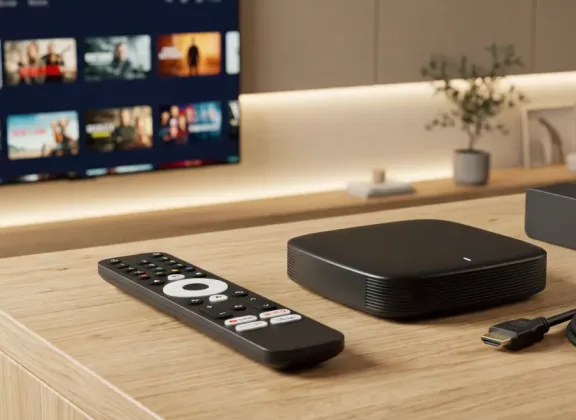
You do not need complicated equipment or technical experience to start watching IPTV. A compatible television, a reliable internet connection, a suitable streaming device and access to an IPTV service are usually enough to build a home entertainment system. The key is choosing components that work well together and match the way you prefer to watch television.
This guide explains the essentials of an IPTV starter kit, compares different MAG set-top boxes, explores alternatives such as Smart TV applications and provides practical advice for connecting everything for the first time.
Essential Equipment for an IPTV Setup
Unlike traditional television services that rely on satellite or terrestrial broadcasting, IPTV (Internet Protocol Television) delivers channels and video content through an IP network. For home users, this typically means watching television over a broadband internet connection.
To get started, you need four basic components:
- A television with an HDMI input. Modern televisions can connect directly to MAG set-top boxes through HDMI. If you have an older TV equipped only with composite RCA inputs, you may need a compatible HDMI-to-analog converter.
- A device for IPTV playback. Depending on your preferences, this can be a dedicated IPTV set-top box, an Android TV device or a compatible application installed on your Smart TV.
- An internet connection and router. Your streaming device needs network access. Depending on the hardware, you can establish the connection through an Ethernet cable or Wi-Fi.
- An IPTV/OTT subscription. Television channels and other content are provided by an IPTV operator, internet service provider or another authorised streaming service. Infomir manufactures playback equipment but does not supply, broadcast or distribute television content. Therefore, purchasing a set-top box does not include access to TV channels.
If you have not yet selected a service, our article on the differences between IPTV providers in Europe and the US can help you understand what to consider before subscribing.
What Comes with an IPTV Starter Kit?
One advantage of purchasing a dedicated IPTV set-top box is that the package already contains most of the accessories necessary for installation.
For example, the MAG540, MAG540w3, MAG544 and MAG544w3 Linux models are supplied with the following components:
| Included equipment | Purpose |
|---|---|
| MAG set-top box | Processes incoming IPTV streams and outputs video to the television |
| Infrared remote control and two batteries | Provides access to menus, channels and playback controls |
| HDMI cable | Transfers digital video and audio from the set-top box to the TV |
| Power adapter | Supplies electricity to the device |
| User manual and warranty certificate | Provides setup information and documentation for the two-year warranty |
With these accessories, you can connect the set-top box to a television and begin configuring the service without purchasing an additional HDMI cable or remote control.
However, a few optional accessories can make your setup more convenient:
- Ethernet cable. If your router is located near the television, a wired connection is often the simplest way to maintain consistent network performance.
- Additional control devices. A replacement remote, compatible keyboard or air mouse may be useful if you frequently enter text or navigate applications. Our article on useful IPTV set-top box accessories explains which additions can improve everyday viewing.
- Surge-protected power strip. This provides an additional layer of protection against certain voltage surges for your television and connected equipment.
Before ordering anything extra, check the specifications of your set-top box and consider which accessories you will actually use.
How to Choose Your First IPTV Set-Top Box
An IPTV set-top box receives digital video, processes the incoming stream and delivers the picture and sound to your television. Although these devices are compact, their operating systems, connection options and supported features can differ considerably.
When comparing models for your first setup, focus on three main considerations.
1. Linux or Google TV: Which Platform Suits You?
Linux-based MAG devices, including the MAG540 and MAG544, are designed primarily for IPTV playback. They support common playlist formats such as M3U, M3U8, PLS and CUE, making them suitable for users who mainly watch television channels through their IPTV provider.
The MAG555 takes a different approach. Running Google TV™, it combines access to streaming applications with a unified entertainment interface. Google Assistant voice control also allows users to search for content and interact with supported functions.
If your main priority is straightforward access to an operator’s IPTV channels, a Linux-based model may be sufficient. If you regularly use different streaming platforms and prefer a more application-oriented experience, Google TV offers greater flexibility.
2. Do You Need Wireless Connectivity?
Your router’s location can influence which model makes sense.
The MAG540 and MAG544 use a wired Ethernet connection. This makes them practical choices when an Ethernet cable can easily reach the television.
The MAG540w3 and MAG544w3 provide the same type of IPTV functionality while adding built-in Wi-Fi connectivity. They are suitable for rooms where running a network cable would be inconvenient.
The MAG555 supports Ethernet, dual-band 2.4 GHz and 5 GHz Wi-Fi, and Bluetooth 5.0. These options allow users to choose between wired and wireless networking while connecting compatible additional devices.
3. What About 4K Playback?
If you already own a 4K television or plan to purchase one, choosing a set-top box that supports Ultra HD video is a sensible decision.
The MAG540, MAG540w3, MAG544, MAG544w3 and MAG555 support 4K playback and HEVC video decoding. The MAG555 additionally supports 4K HDR playback at up to 60 frames per second.
Keep in mind that the actual viewing quality also depends on the content supplied by your provider, the television’s capabilities and the available network bandwidth.
The following comparison summarises the main differences between the models.
| Model | Operating system | Connectivity | Suitable for |
|---|---|---|---|
| MAG540 / MAG544 | Linux | Ethernet | IPTV viewing with a wired network connection |
| MAG540w3 / MAG544w3 | Linux | Ethernet and Wi-Fi | IPTV setups where wireless access is preferred |
| MAG555 | Google TV™ | Ethernet, dual-band Wi-Fi, Bluetooth 5.0 | Users combining IPTV with streaming applications and voice control |
The best option is not necessarily the device with the longest feature list. It is the one that supports your IPTV service, connects conveniently to your home network and offers the functions you expect to use.
IPTV Set-Top Box or Smart TV App: Which Is Better?
If your television already supports IPTV applications, you may wonder whether buying a separate device is necessary.
For occasional viewing, installing a compatible application directly on a Smart TV can be a convenient solution. It requires no additional hardware, and you can manage playback through the television’s existing interface.
However, application availability depends on the television manufacturer, operating system and software support. Certain IPTV players may not be available for your TV model, while older televisions can become less responsive as applications and services evolve.
A dedicated set-top box provides an alternative. It handles IPTV playback independently of the television’s built-in software. Linux-based MAG devices are designed for stable long-term operation, while the external box can also be connected to another compatible television if you upgrade your screen.
For households that watch IPTV channels every day, a separate set-top box can be a practical investment. It may also be the preferred option when an IPTV operator recommends particular hardware.
If you only watch IPTV occasionally and your existing Smart TV application performs well, there may be no immediate reason to add another device.
How Much Internet Speed Does IPTV Require?
A stable network connection is essential for comfortable IPTV viewing. Even a capable set-top box cannot compensate for repeated interruptions in the incoming video stream.
The bandwidth required depends on the video resolution, compression format and technical characteristics of the IPTV service. As a general reference, many services recommend at least 25 Mbps for a single 4K stream. Our article on internet speed testing for 4K IPTV explores this topic in more detail.
HD content typically requires less bandwidth, although the exact recommendation should be confirmed with your IPTV operator.
Remember that your connection may serve several devices simultaneously. If one person watches IPTV while others stream videos, download large files or participate in video calls, the total bandwidth demand increases.
For more reliable playback, follow three simple recommendations:
- Prefer Ethernet when practical. A wired connection generally offers more consistent performance and is less susceptible to wireless interference.
- Choose the appropriate Wi-Fi band. If both your router and set-top box support 5 GHz Wi-Fi, this band can provide better performance in suitable conditions. Avoid placing the device too far from the router or behind obstacles that weaken the signal.
- Check connection performance during busy periods. Running a speed test in the evening can help identify slowdowns that may not be noticeable at other times of day.
Connection stability, packet loss and local network congestion can affect playback even when a speed test reports sufficient download bandwidth.
Setting Up IPTV in Five Easy Steps
After choosing your equipment and subscribing to a compatible IPTV service, you can proceed with installation. The process is straightforward and usually requires only a few connections and configuration steps.
- Connect the set-top box to your television. Use the supplied HDMI cable to link the HDMI output on the box to an available HDMI input on the TV.
- Establish an internet connection. Connect an Ethernet cable between the router and the set-top box. If you use a wireless model such as MAG540w3, MAG544w3 or MAG555, select your Wi-Fi network during configuration and enter its password.
- Switch on the equipment. Connect the power supply to the set-top box and a suitable electrical outlet. Turn on the television and select the HDMI input used for the connection.
- Configure your IPTV service. Follow your provider’s instructions to enter the portal address, load a compatible playlist or complete the required authorisation procedure.
- Test playback and picture settings. Open several channels to check video and audio. If necessary, adjust the output resolution and other available settings to match your television.
Once everything is configured, you can organise your channel favourites and explore the additional features available through your chosen IPTV service.
Frequently Asked Questions
What do I need to start watching IPTV at home?
You need a television with an HDMI input, a compatible IPTV set-top box or another playback device, a broadband internet connection with a router and access to an IPTV/OTT service that provides the content.
Do MAG IPTV set-top boxes include an HDMI cable?
Yes. MAG Linux models such as MAG540, MAG540w3, MAG544 and MAG544w3 come with an HDMI cable, power adapter, infrared remote control with two batteries, user manual and warranty documentation.
Can I watch IPTV using a wireless connection?
Yes. Models equipped with Wi-Fi, including MAG540w3, MAG544w3 and MAG555, can connect to a compatible wireless router. For high-bitrate content such as 4K video, Ethernet is generally preferable when available because of its more consistent connection quality.
Are TV channels included when purchasing an Infomir set-top box?
No. Infomir manufactures IPTV playback devices but does not provide television channels or streaming subscriptions. Content access must be arranged separately through an IPTV/OTT service provider.
Building your first IPTV system is easier when you focus on the essentials rather than unnecessary equipment. Choose a set-top box that supports your preferred service, make sure your television and home network are compatible, and complete the initial configuration using your provider’s instructions. Whether you prefer the dedicated IPTV functionality of a Linux-based MAG device or the broader entertainment options of Google TV, a carefully selected starter kit gives you a convenient foundation for everyday television viewing.
