
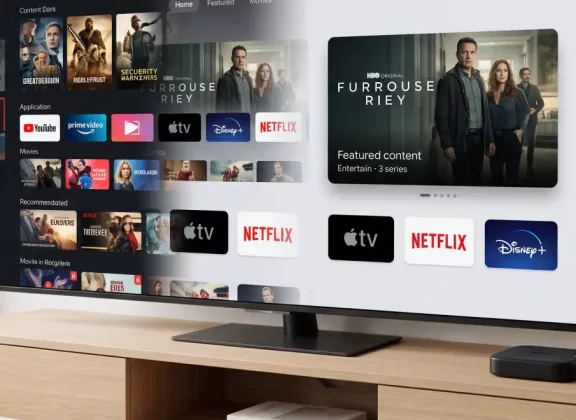
A television should make it easy to enjoy the content you choose. Yet a typical viewing session can begin with promotional banners, moving previews and applications you barely recognise. Over time, these extras turn a straightforward activity into a series of small decisions about what to open, skip or dismiss.
Digital minimalism brings your TV interface closer to your viewing habits. On an IPTV set-top box or media player, that means organising applications, limiting interruptions and adjusting content suggestions. The available settings depend on whether you use Google TV, Android TV or an operator-managed interface, as well as the device model and software version.
Uninstall Unused Apps and Prioritise the Essentials
Start with the applications you have installed. Consider which ones serve a current purpose and which remain from a trial subscription, a one-off experiment or a service you stopped watching. There is no ideal number of TV apps: the useful distinction is whether each one earns its place.
To uninstall an app on Google TV, locate it in the Your apps row, press and hold Select on the remote, then open View details and choose Uninstall. For applications you keep, use Move to arrange them in a convenient order. Place your regular IPTV player and streaming services first.
Removing a shortcut from a favourites row only changes navigation; the application remains installed. Some preinstalled apps cannot be uninstalled through standard menus. Avoid modifying unfamiliar system components, and save any IPTV login information or local playlists before removing a player.
Deleting unused applications recovers storage space, but it is not a universal solution to buffering or slow playback. Subscription payments also require separate attention: uninstalling an app does not cancel the associated plan. Manage cancellation through whichever provider or platform handles billing.
Use Google TV’s Simpler Home Screen
If you usually know which service you want to open, Google TV’s Apps only mode can make the home screen more manageable. Open Settings, enter Accounts & Sign In, select your profile and turn on Apps only mode. Depending on the software version, the account menu may be labelled Accounts & Profiles.
Personalised home screen recommendations disappear in this mode, although sponsored content and teasers can still appear. The change also leaves suggestions inside streaming applications intact.
Before enabling it, consider the features you use. Google states that Search and Google Assistant are unavailable in Apps only mode, as are actions such as adding content to the Watchlist. For someone who regularly searches by voice, these limitations may outweigh the benefit of a simpler screen.
Privacy controls remain separate. With Web & App Activity enabled, Google can continue improving recommendations even when they are hidden. If your goal includes changing how activity informs personalisation, review those account settings as well.
Choose What Appears on Android TV
Android TV provides home screen controls on supported devices. Open Settings, then Device preferences, Home screen and Customize channels. From there, switch off rows you do not use. In this menu, “channels” refers to application content rows, not the television channels included in your IPTV package.
Look in the same Home screen menu for video and audio preview settings. Disabling them can remove unexpected movement and sound while you browse. Availability varies, so a device without these switches may require a different approach described in its manual.
The standard interface still has limits. Google notes that certain trending or sponsored suggestions cannot be turned off. Hiding selected rows therefore reduces clutter without necessarily producing a completely promotion-free home screen.
Control Notifications Where They Originate
An interruption may come from the television, the connected media player or an application. Establish its source before changing settings. A notification generated by the TV itself will not disappear because you adjusted an IPTV box connected through HDMI.
For application alerts, check Settings and Apps on the relevant device. Open the application’s settings and look for a Notifications option. If the device exposes this control, use it to disable unwanted messages; availability depends on the model and software. The application may also have its own preferences for promotions or programme reminders.
Choose which alerts deserve your attention. A reminder for a scheduled broadcast can be useful, while repeated promotional messages may add little. Treat connection problems and software update requests separately, addressing the underlying issue instead of continually dismissing the message. Recommendation tiles require home screen controls rather than notification settings.
Reduce Distractions Inside Your Viewing Apps
A tidy home screen is only the starting point. Once you enter a streaming service, its own interface determines what appears and plays automatically. Check the application’s playback preferences for controls that make browsing quieter.
Netflix allows you to turn off Autoplay previews for an individual profile. Change this through the mobile app or open the profile’s Playback settings in a web browser. If the TV does not reflect the change immediately, switching to another profile and back may refresh it.
For IPTV viewing, a favourites list can shorten the route to your usual channels. Where supported, hide categories you never browse and keep a manageable selection for daily use. Leave access to the complete catalogue available for occasions when you want something different.
Operator-managed IPTV devices may offer a different set of controls. Explore the player or portal for channel sorting, favourites and reminders. If an option is missing, check with the provider rather than assuming instructions for Google TV apply.
Digital minimalism works when your TV becomes easier to use. Keep useful apps within reach, reduce unwanted suggestions and control alerts at their source. A brief review when your habits change is enough to maintain a setup that helps you get from switching on to watching with fewer distractions.
